Android debugging in the browser
Your Android device, right in the browser.
ADBKit connects to Android phones and tablets over USB, Wi-Fi or your local network. You get a live screen you can tap and type on, plus everyday ADB tools: screenshots, screen recording, APK installs, logcat, a shell and file transfer. No platform-tools to install and no desktop app.
- Free to use
- No install
- No account
- Data stays local
The workspace needs Chrome, Edge or another Chromium-based browser on a desktop or laptop computer.
Apps
ADB Kit on all your devices.
Use ADBKit right here in the browser, or install the ADB Kit app on your phone or computer. One account and one Pro plan work everywhere.
Android
Runs ADB on the phone itself, with no root and no computer, or controls another Android phone over Wireless debugging.
iPhone and iPad
Controls Android phones over Wi-Fi: a shell, screen mirroring and control, files and apps.
- Coming soon
Linux
Controls Android phones over Wi-Fi from a desktop window. From the Snap Store or as a direct download.
- Coming soon
Windows
The same desktop app for Windows 10 and 11, from the Microsoft Store.
- Coming soon
macOS
The same desktop app for Mac computers.
Workspace tools
Everything below runs in the browser workspace, free and without an account.
- Live device screen with controlSee the device's display in real time and use it with your mouse and keyboard: click to tap, drag to swipe and type to enter text.
- Screenshots with markupCapture the device screen in one click, then crop it, draw arrows and boxes or add text before you save the PNG.
- Screen recordingRecord the live device screen, trim the start and end, and save the video to your computer.
- Install APKsPick an .apk file from your computer and install it on the connected device, with a clear success or failure result.
- Live logcatStream device logs next to the screen to see what an app is doing while you use it.
- File managerBrowse the whole device storage, download files to your computer and upload files into any folder you can write to.
- ADB shellOpen a full shell on the device in a panel under the screen. Run commands while you watch the result live.
- Power and boot modesReboot or power off the device, or restart it into recovery, bootloader, fastbootd or Samsung download mode, with a confirmation first.
- Three ways to connectPlug in a USB cable, or connect over your network with TCP/IP or Wireless debugging, paired with a code or a QR code. A step-by-step guide shows where you are and what to do next.
- Private by designThe connection runs between your browser and your device, directly over USB or through a small agent on your own computer for Wi-Fi and network. Screens, logs, files, APKs and serial numbers are never uploaded to ADBKit.
Latest guides
All guides →- Remove Ads and Bloatware From Android TV and Google TVClean up an Android TV, Google TV or Fire TV from your browser with ADBKit. Turn off ad rows and preinstalled junk, switch to a clean home screen, and undo it all.
- How to Use ADB on Android Without a PC (No Root)Run ADB commands on your Android phone itself, with no computer, no USB cable and no root. Wireless debugging on Android 11+ and the ADB Kit app, step by step.
- Run ADB Shell Commands on Android Without a PC or RootRun adb shell commands on the phone itself, without a PC or root. App shell vs adb shell rights, and useful pm, am, settings, dumpsys, wm and cmd commands to try.
- How to Use ADB Without a USB CableUse ADB with no USB cable at all. Wireless debugging on Android 11+, adb tcpip on older phones, and controlling the phone from your browser over Wi-Fi.
Why ADBKit
Everyday ADB tasks shouldn't need a toolchain.
Checking a build on a real device often means installing the Android SDK platform-tools, adding them to your PATH, and juggling separate tools for mirroring, logs and screenshots. ADBKit removes the setup and keeps the work in one tab.
Setup before you can start
Installing platform-tools and getting a device recognised takes time. On a locked-down work laptop you may not be allowed to install anything at all.
Too many separate tools
Mirroring, logcat, screenshots, APK installs and file transfer usually live in different apps and terminal commands. Switching between them breaks your flow.
Device data you don't want to share
Screens, logs and files from test devices can be sensitive. Many online tools route them through someone else's servers. ADBKit does not.
Screenshots
A look at the workspace.
The device screen sits in the middle, tools open on the left, and logcat runs on the right.
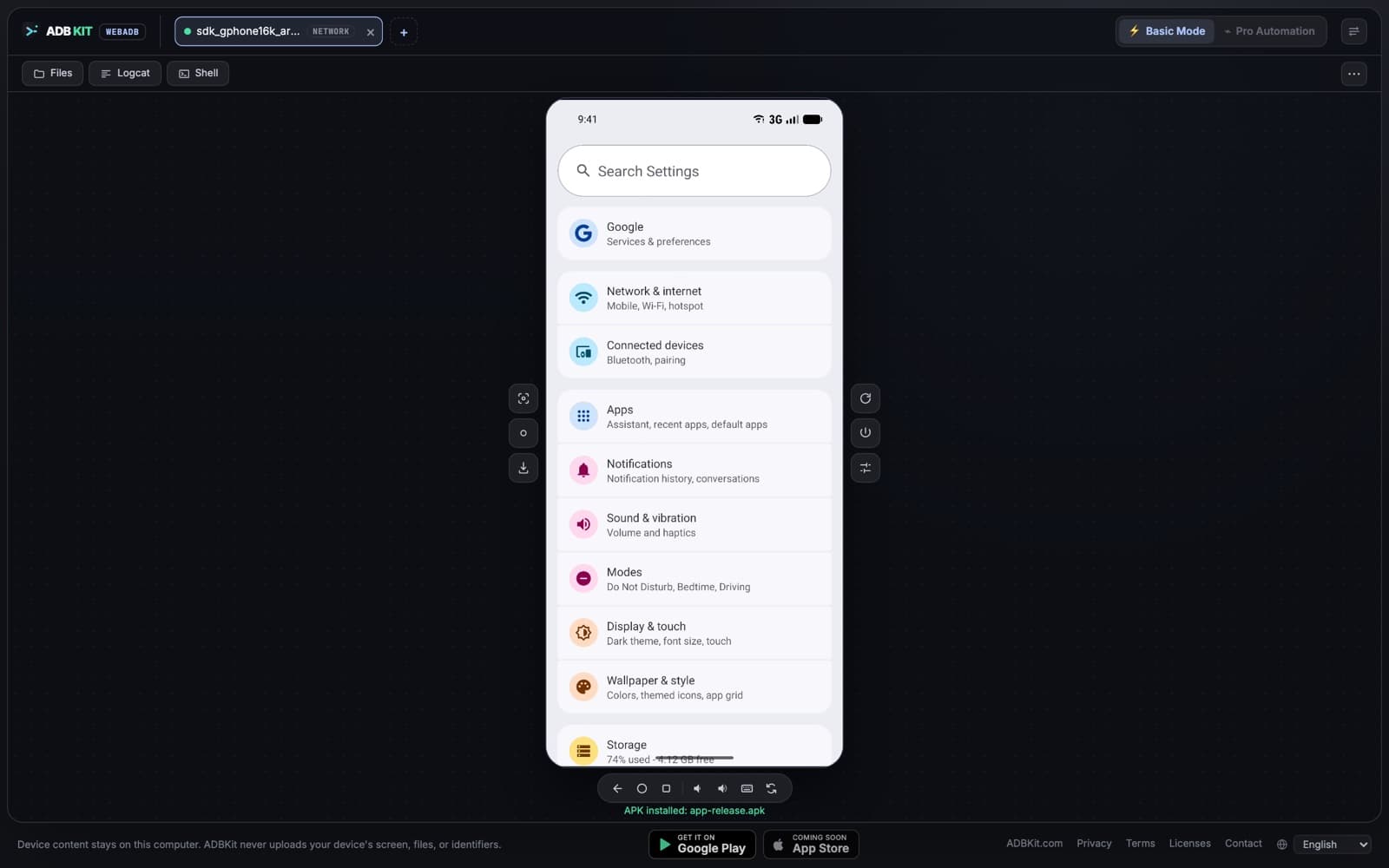
Connected device with live screen and controls 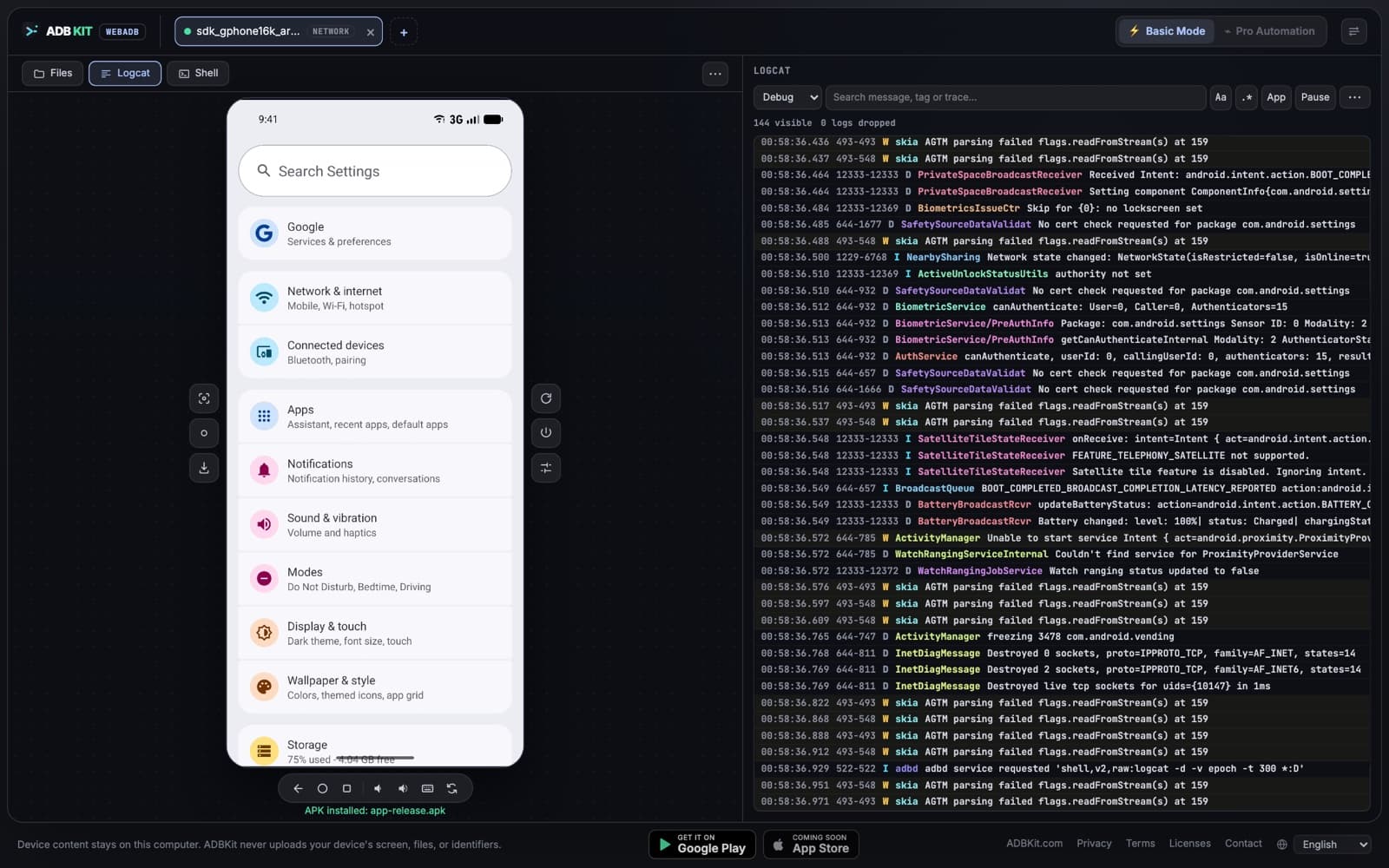
Live logcat with level filter and search 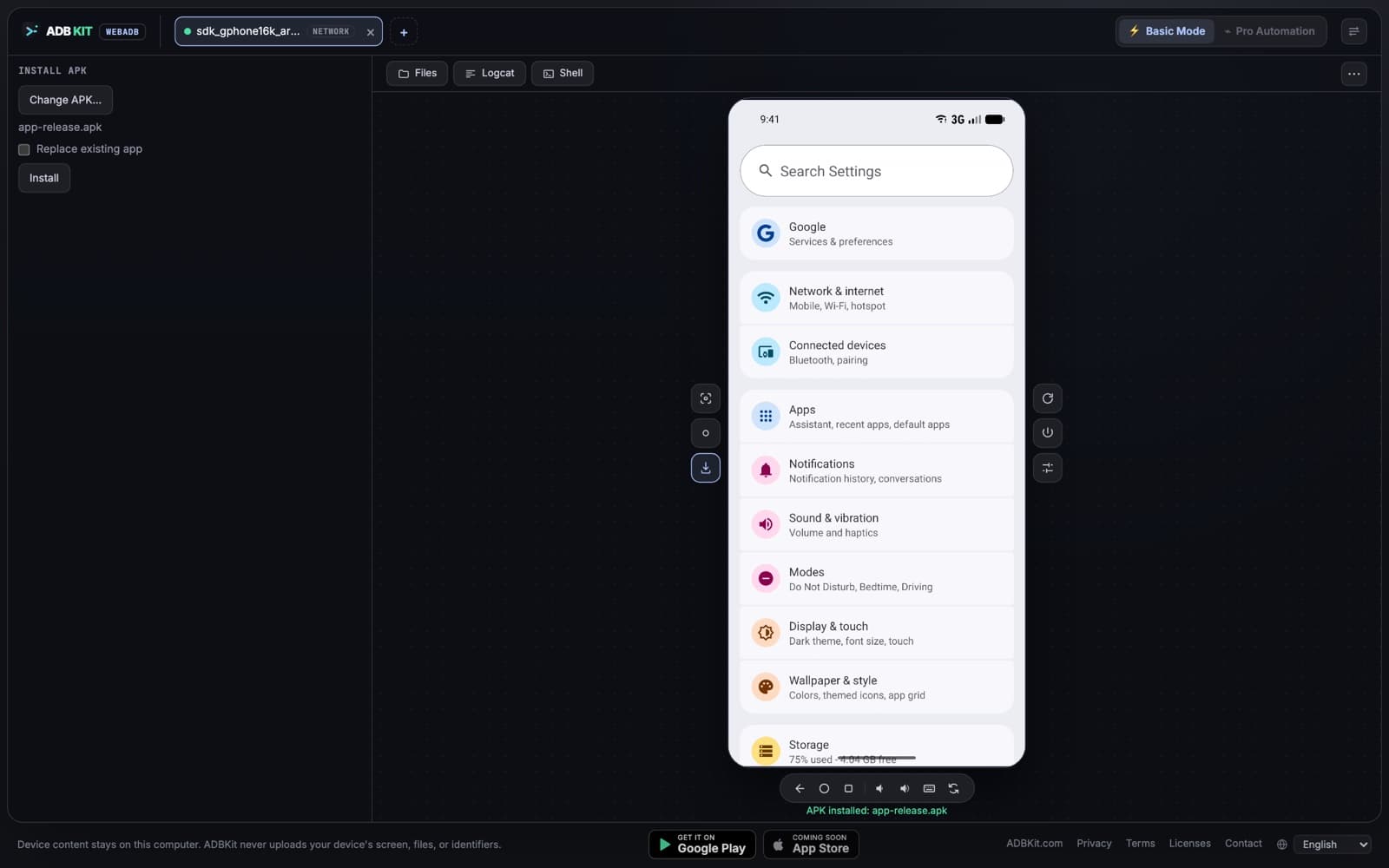
Installing an APK on the connected device 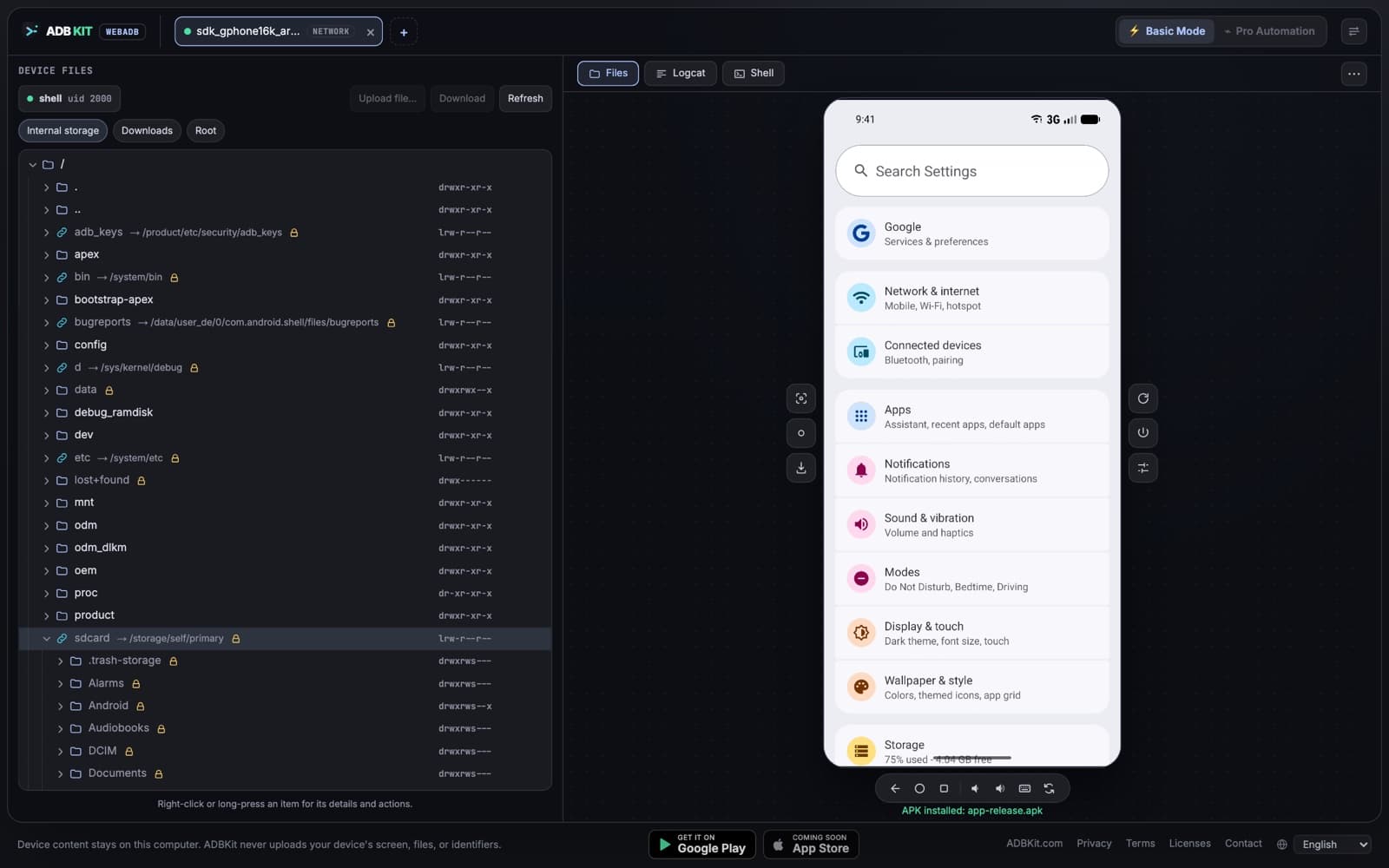
Browsing and transferring files on the device
Demo
See it in action.
A short walkthrough: controlling the screen, typing with the keyboard, taking a screenshot, reading logcat, browsing files and installing an APK.
How it works
Connected in under a minute.
Pick the way that suits you: a USB cable, or your network through the small ADBKit agent. The connect screen walks you through each step.
Turn on debugging
On the device, open Settings › About phone and tap Build number seven times to enable Developer options. Then turn on USB debugging, or Wireless debugging on Android 11 and newer.
Choose how to connect
Plug the phone into your computer with a USB data cable. For a network connection, run the one-line agent install shown on the connect screen.
Open the workspace
Open ADBKit in Chrome or Edge and click Connect device. Choose your device in the browser's USB picker, or let the agent find it on your network.
Allow or pair on the device
Tap Allow on the “Allow USB debugging?” prompt, or pair with a code or a QR code for Wireless debugging. The live screen appears and every tool is ready.
Privacy
Your device data never leaves your computer.
ADBKit is a web page, but the device connection is local. Over USB, your browser talks to the device directly with WebUSB. Over your network, including TCP/IP and Wi-Fi Wireless debugging, it goes through the small ADBKit agent running on your own computer. Either way there is no ADBKit server in the middle.
USB cable
Network or Wi-Fi
Nothing to upload
Screen frames, screenshots, recordings, logs, files, APKs and device identifiers stay between your browser, your computer and your device. Nothing goes to ADBKit.
Two explicit approvals
You choose the device in the browser's permission prompt, and you approve debugging on the device itself. For network connections you also allow your browser to reach the agent on this computer. Each can be revoked at any time.
A local agent you can read
For Wi-Fi and network connections, the agent listens only on your computer, talks only to your phone on your own network and never calls the internet. Its source code is open to read on this site.
Open-source foundations
Built on the open-source Tango (ya-webadb) libraries for ADB in the browser and scrcpy for screen mirroring.
Requirements
What you need.
- Browser
- Chrome, Edge or another Chromium-based browser with WebUSB, on desktop
- Computer
- A desktop or laptop computer you are allowed to use for debugging
- Device
- An Android phone or tablet with USB debugging enabled (Android 11 or newer for Wireless debugging)
- Connection
- A USB data cable, or the same Wi-Fi or network plus the small ADBKit agent
Not supported
- Firefox and Safari for USB (no WebUSB support)
- iPhone and iPad
Roadmap
What's coming next.
- Coming soon
Automation workflows
Define a sequence of device operations once and run it again whenever you need it.
- Coming soon
Desktop apps for Linux, Windows and macOS
ADB Kit is on Android and iPhone today. Desktop apps for Linux, Windows and macOS are coming soon.
FAQ
Frequently asked questions.
Do I need to install ADB or Android platform-tools?
No. Over USB, ADBKit talks to the device directly from the browser with WebUSB, so you don't need platform-tools, a desktop app or a browser extension. For Wi-Fi and network connections you run one small ADBKit agent on your computer, with a one-line install.
Is ADBKit free?
Yes. Everything available today is free and needs no account. That includes screen control, typing, screenshots, recording, APK installs, logcat, a shell, file transfer and connecting several devices. A paid Pro plan for automation is planned for later.
Does my device data go to a server?
No. Screen frames, logs, files, APKs and device identifiers travel only between your browser, your computer and your device, over USB or through the agent on your own network. ADBKit has no server that receives them.
Which browsers are supported?
For USB, Chromium-based desktop browsers with WebUSB, such as Google Chrome and Microsoft Edge. Firefox and Safari do not support WebUSB. The page must be opened over HTTPS.
Why doesn't my device connect?
Over USB, most often another program is already using the connection, for example Android Studio, scrcpy or an adb server. Close it (or run “adb kill-server”), make sure USB debugging is on, and approve the prompt on the device. Over Wi-Fi, check that the agent is running and that the phone and computer are on the same network. The connect screen shows which step is stuck.
Does it install anything on my phone?
To show and control the screen, ADBKit copies the open-source scrcpy server helper to a temporary location on the device. No app is installed unless you install an APK yourself.
Can I use it wirelessly?
Yes, in two ways. Classic TCP/IP works on any Android and needs a USB cable once to switch it on. Wireless debugging (Android 11 or newer) pairs with a code or a QR code and needs no cable. A browser cannot open network connections on its own, so a small agent runs on your computer, and the connect screen shows how to start it. Its source code is public on this site.
Can I connect more than one device at once?
Yes, up to six, in any mix of USB and network connections. Each device gets its own tab, and only the selected tab streams video so the others stay light.
Can I type on the device with my keyboard?
Yes. Click the screen and type, including accented and non-Latin text. Esc is Back, and Ctrl+A, C, V and X work in text fields.
Is ADBKit the same as the “adbkit” npm package?
No. The adbkit npm package is a Node.js library. ADBKit at adbkit.com is an independent browser workspace and is not affiliated with it.