
Remove Ads and Bloatware From Android TV and Google TV
Clean up an Android TV, Google TV or Fire TV from your browser with ADBKit. Turn off ad rows and preinstalled junk, switch to a clean home screen, and undo it all.
Many Android TVs and Google TV boxes fill the home screen with sponsored rows, "top picks" and preinstalled apps you never asked for, and some send usage data in the background. With ADB you can switch most of that off and even replace the home screen, without root and without uninstalling anything, so every step can be undone. This guide shows how to do it from a browser tab with ADBKit.
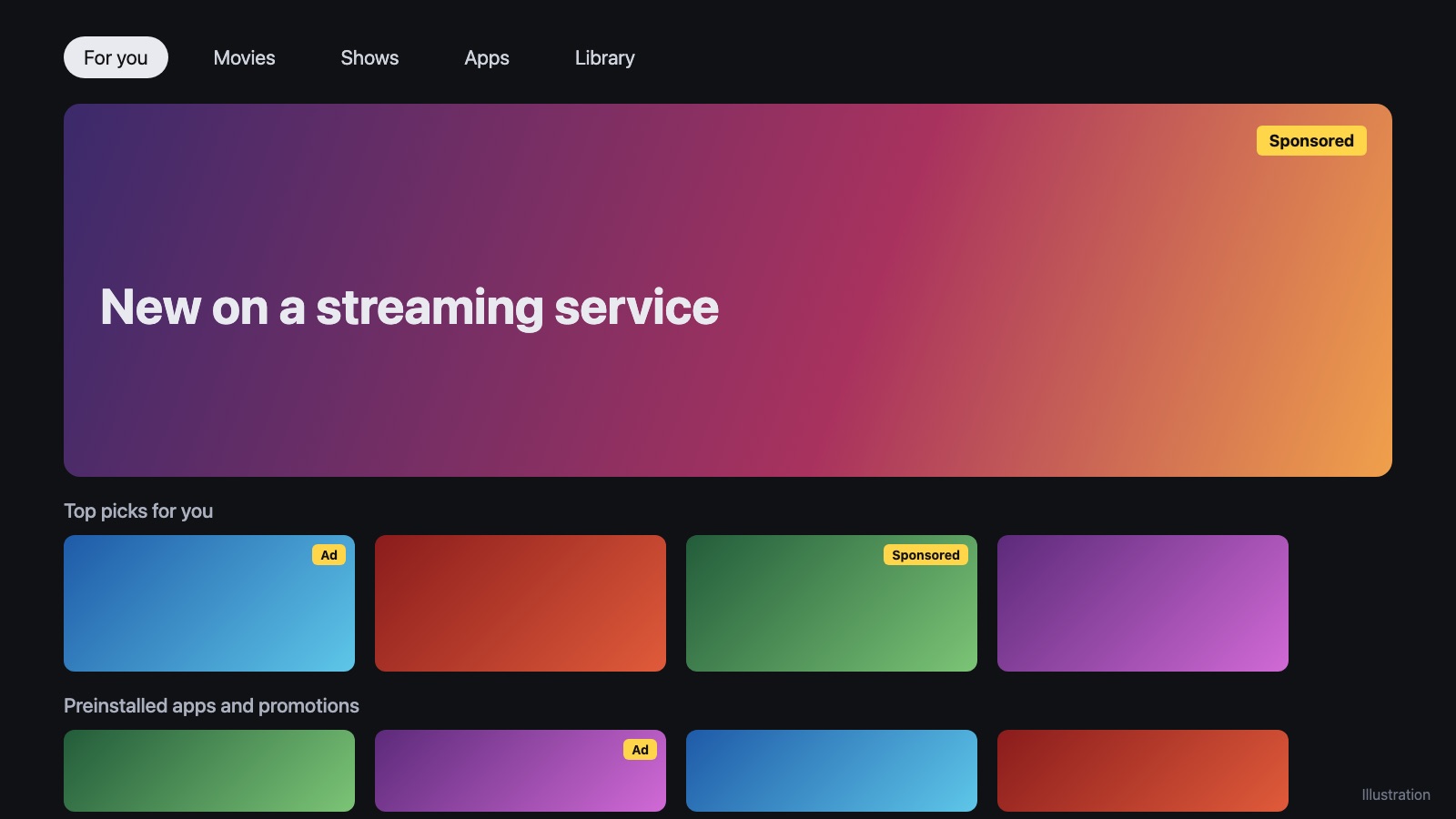
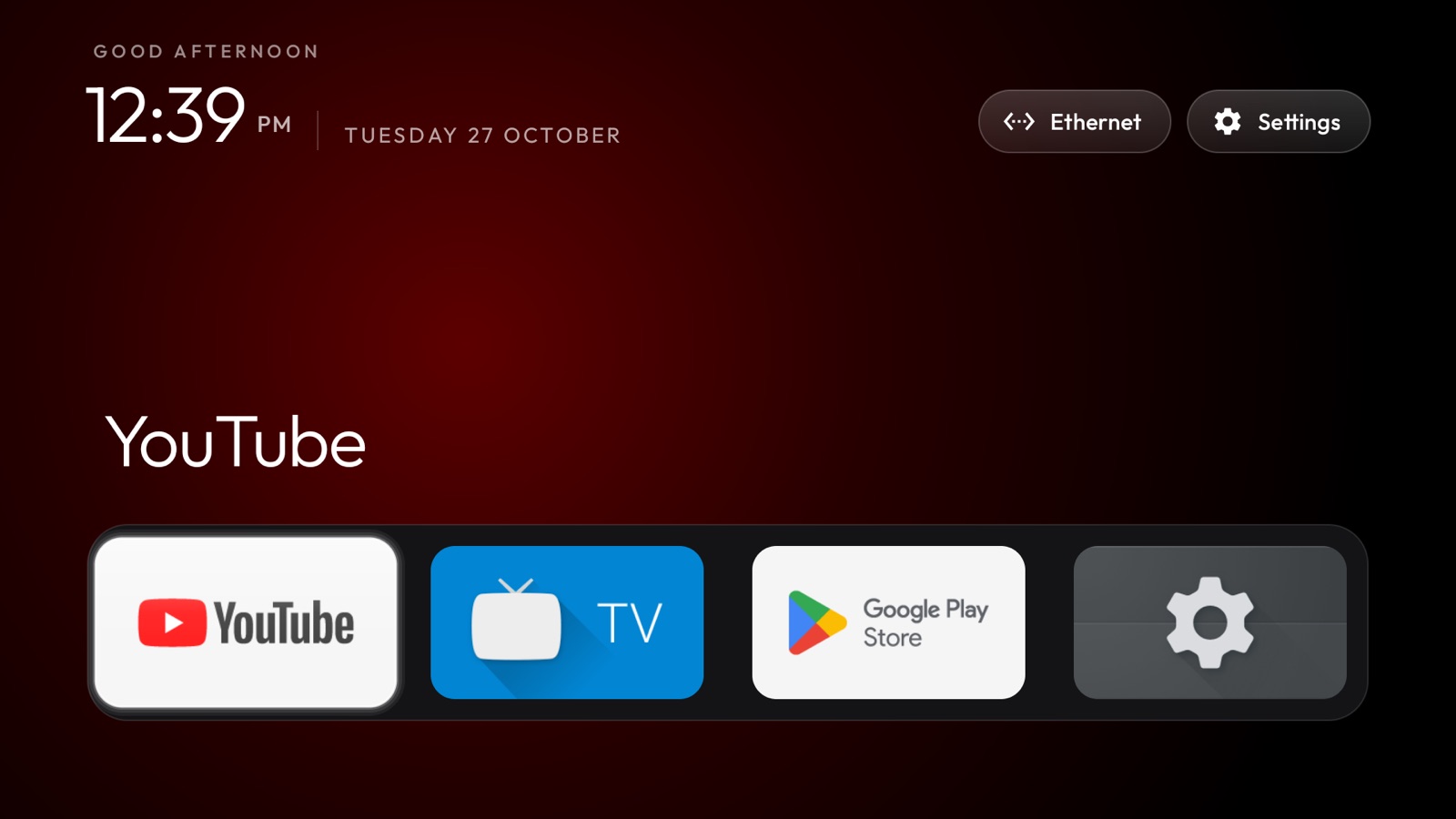
Credit where it is due
The lists of what is safe to switch off on each TV model, and the clean home screen (launcher) shown above, come from CleanYourTV, an open-source project (MIT) with lists for more than 250 TV models. A community member also built the Clean Your TV phone app, which does the whole job from an Android phone. ADBKit is not affiliated with either project. This guide shows the same steps from a computer browser.
Easiest way: the phone app
If you have an Android phone on the same Wi-Fi, the community app is the simplest route: it finds the TV, shows a plan, saves a restore point and cleans the TV in a few minutes. Download it from its GitHub releases page.
From your computer with ADBKit
What you need
- An Android TV, Google TV or Fire TV on the same network as your computer
- Chrome or Edge, and the small ADBKit agent on your computer
- The TV's remote
Samsung (Tizen), LG (webOS) and Roku TVs do not run Android, so this does not work on them.
Step 1: turn on ADB on the TV
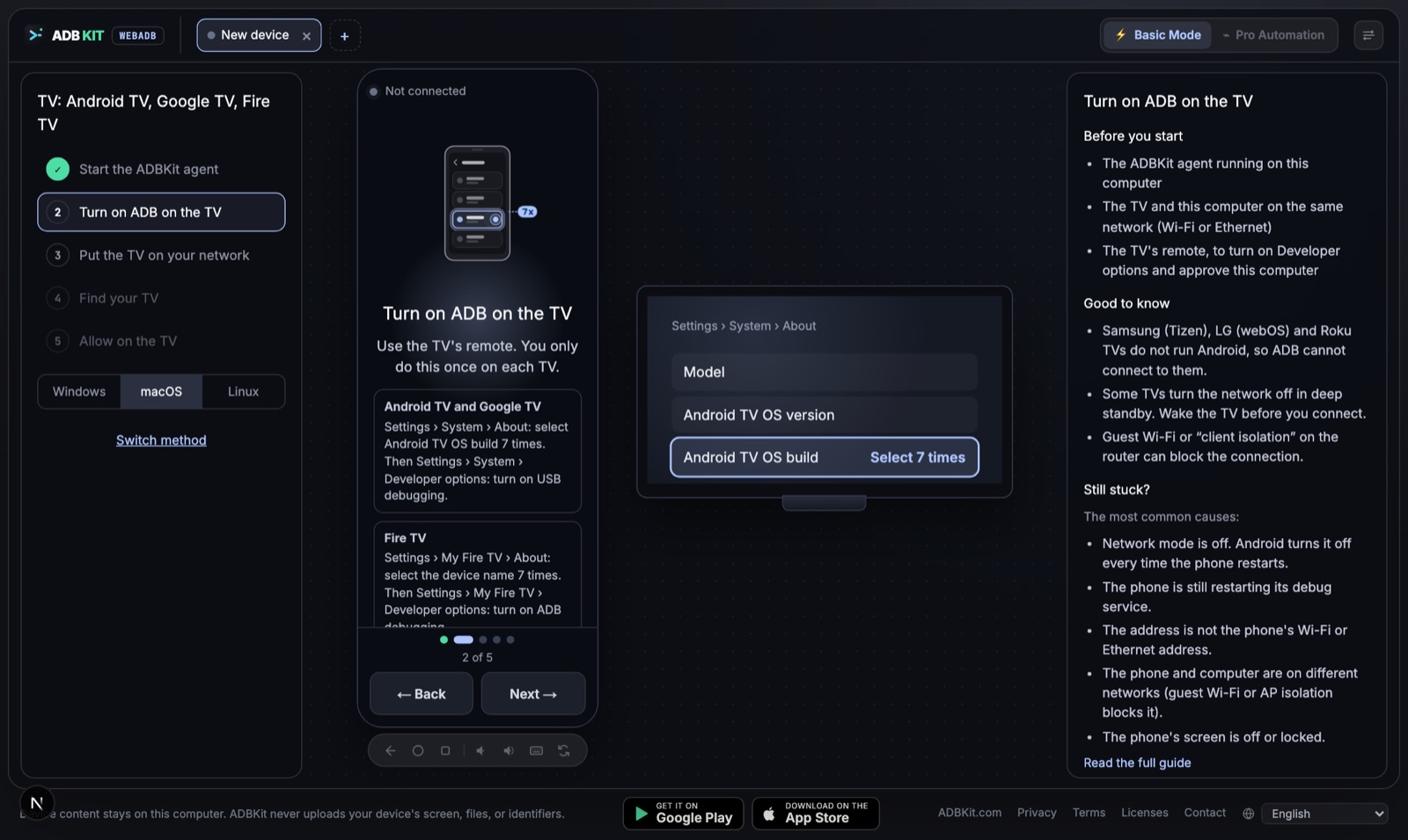
- Android TV and Google TV: Settings › System › About, select Android TV OS build 7 times. Then Settings › System › Developer options, turn on USB debugging.
- Fire TV: Settings › My Fire TV › About, select the device name 7 times. Then Settings › My Fire TV › Developer options, turn on ADB debugging.
Step 2: connect from ADBKit
Open ADBKit and choose TV: Android TV, Google TV, Fire TV. The left side walks you through the steps, and the TV picture on the right shows what to look for on your TV at each step.
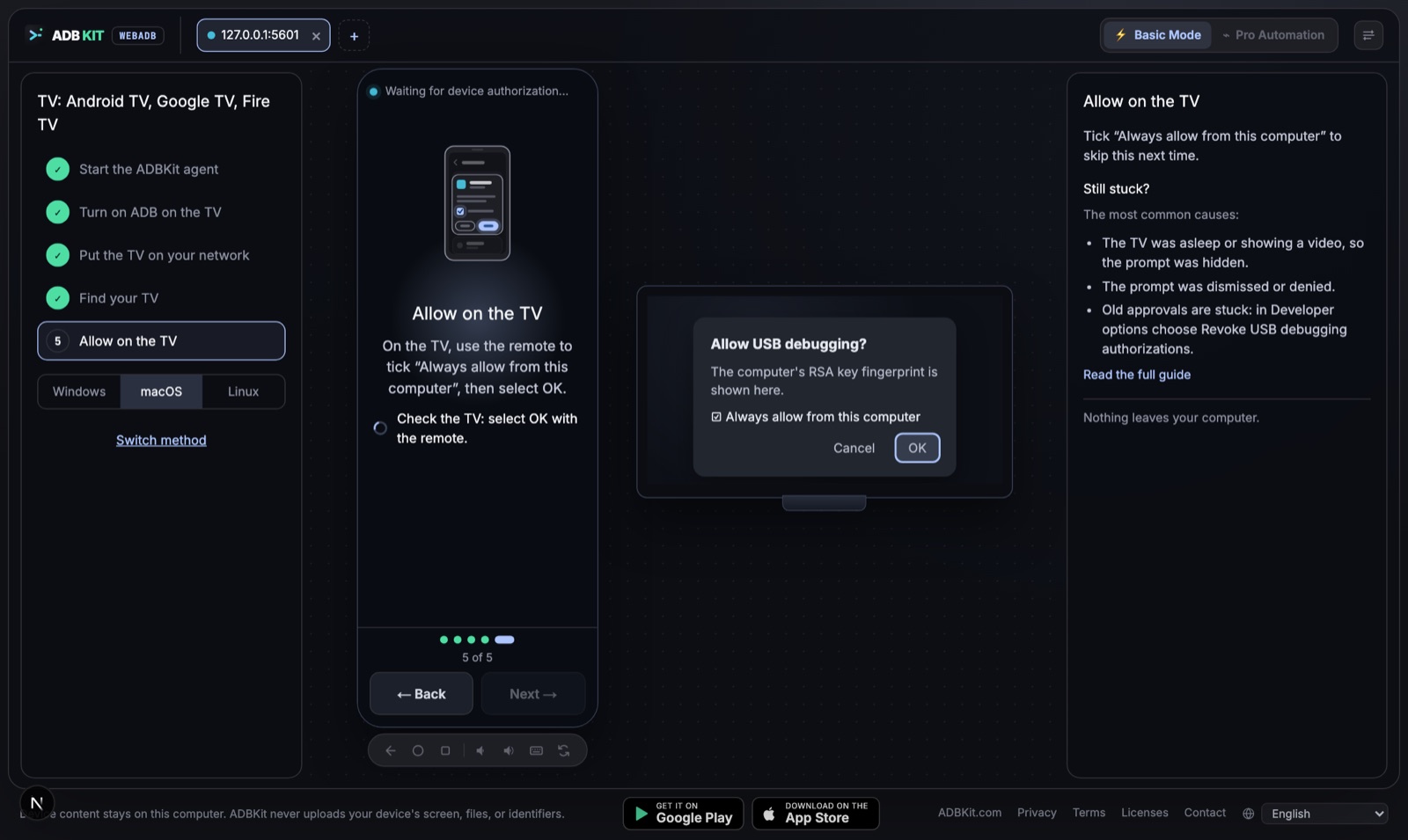
When ADBKit connects, the TV asks Allow USB debugging?. Use the remote to tick Always allow from this computer and select OK.
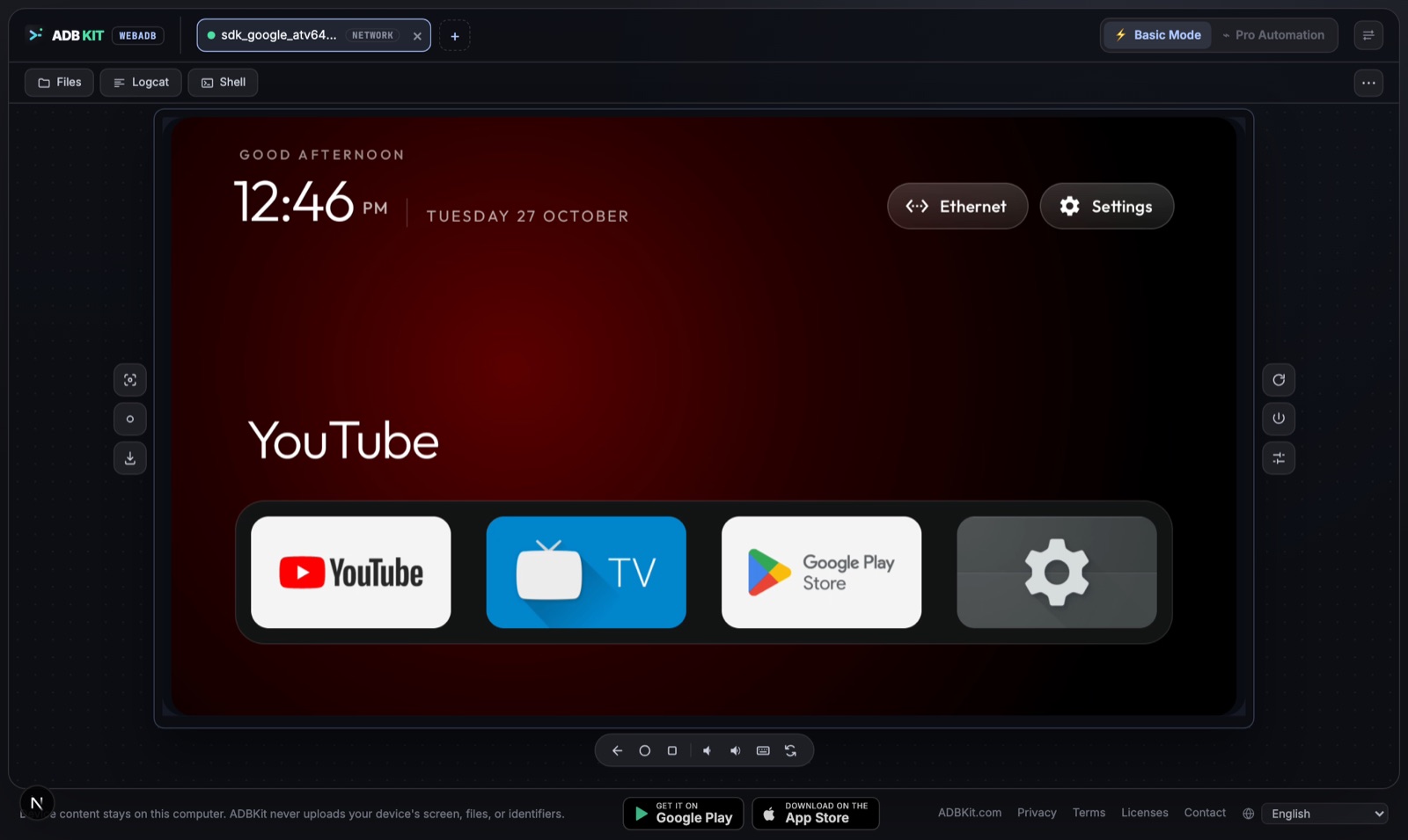
Once connected, you see the TV's live screen in the browser. Arrow keys work like the remote's D-pad, Enter is OK and Esc is Back.
Step 3: write down how the TV is set up now
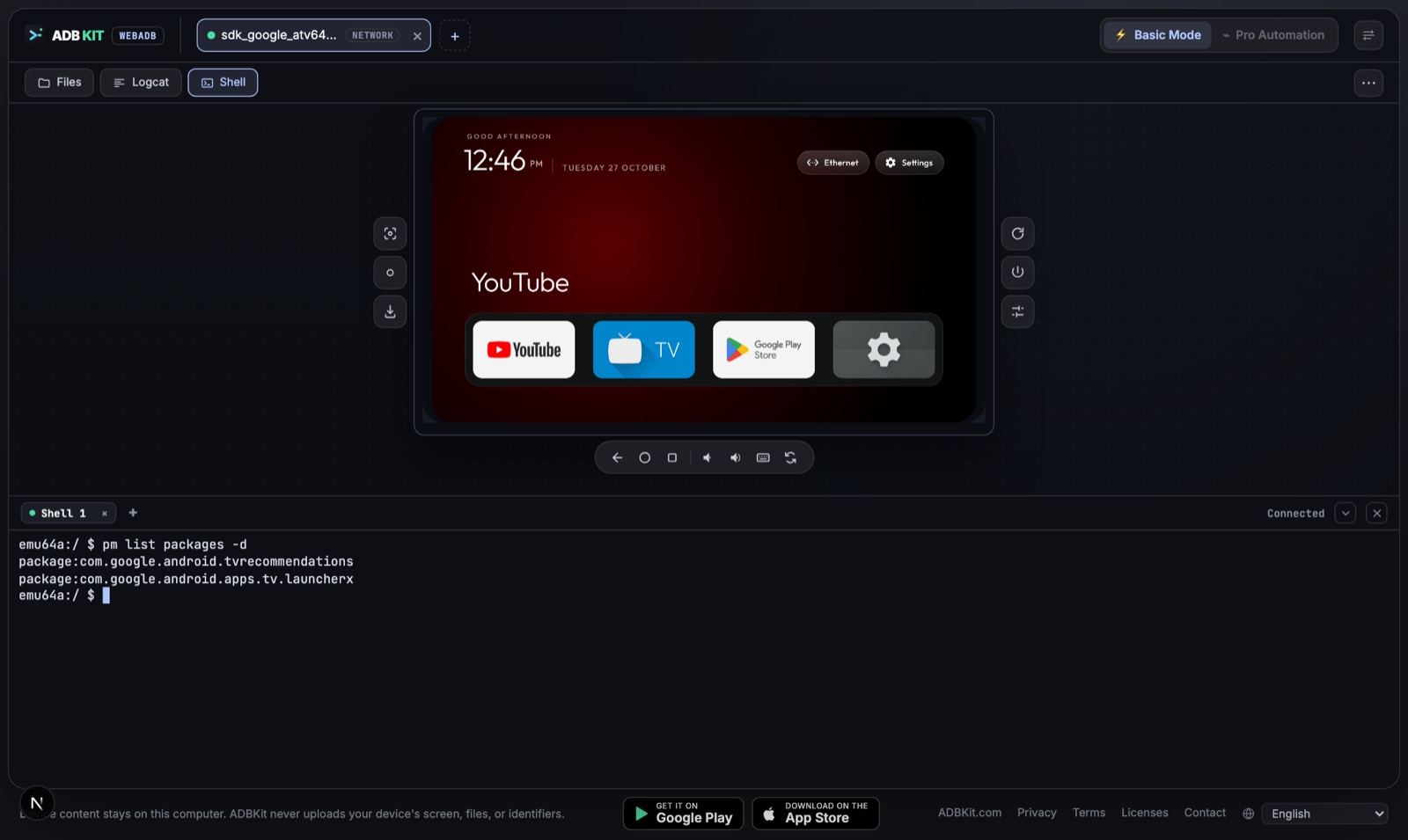
Open Shell and run these two commands. Copy the output into a text file on your computer. It is your restore point.
cmd package resolve-activity --brief -a android.intent.action.MAIN -c android.intent.category.HOME
pm list packages -d
The first line is the current home screen (for example com.google.android.apps.tv.launcherx/.home.HomeActivity on Google TV). The second lists apps that are already switched off.
Step 4: switch off ads and preinstalled apps
Find your TV in CleanYourTV's list of models and open its debloat.txt. Each line is an app package. For every line, run in the Shell:
pm disable-user --user 0 com.example.packagedisable-user switches an app off for your profile. It is not uninstalled and can come back at any time. Skip any line you are unsure about, and do not switch off the current home screen yet.
Step 5 (optional): a clean home screen
The ads on a Google TV home screen come from the home screen app itself, so the biggest change is replacing it. The CleanYourTV launcher is included in the community app's APK from its releases page: an APK is a zip file, and the launcher is assets/bundled/cleanyourtv-launcher.apk inside it. Check the download against the SHA-256 published next to it.
- In ADBKit, open Install APK and install
cleanyourtv-launcher.apkon the TV. - Check that it starts, before touching the old home screen:
am start -W -a android.intent.action.MAIN -c android.intent.category.HOME -n com.gathin.tvhome/.MainActivityGo on only if the output says Status: ok.
- Switch the old home screen off and make the new one the default. Use the package from your Step 3 note (
com.google.android.apps.tv.launcherxon Google TV,com.google.android.tvlauncheron most Android TV sets):
pm disable-user --user 0 com.google.android.apps.tv.launcherx
cmd package set-home-activity --user 0 com.gathin.tvhome/.MainActivity
Press Home on the remote. On Fire TV, Amazon does not let another app become the home screen, so stop after Step 4.
How to undo everything
Turn the apps back on, one line per package you switched off:
pm enable com.example.packageTo bring back the original home screen, enable it and set it as the default, using the line from your Step 3 note:
pm enable com.google.android.apps.tv.launcherx
cmd package set-home-activity --user 0 com.google.android.apps.tv.launcherx/.home.HomeActivity
Good to know
- Nothing is uninstalled. Every change can be reversed with
pm enable. - Never leave the TV without a home screen. Always check the new one starts before switching the old one off.
- A firmware update can switch some apps back on and restore the old home screen. Run Step 4 again after big updates.
- Netflix, YouTube, live TV and HDMI inputs are not in the lists. Keep anything you use.
Coming to ADBKit
A one-click Clean TV button is on its way to ADBKit: it will pick the right list for your TV model, save the restore point for you, show what will change, and undo everything with one press. Until then, the steps above do the same by hand.
More TV guides: control an Android TV with ADB, ADB commands for Android TV and installing APKs on Android TV.