
Features
Everything you need for your connected devices.
Connect once, then view, control, type, capture, install, inspect and transfer, all from the same workspace.
Live device screen with control
See the device's display in real time and use it with your mouse and keyboard: click to tap, drag to swipe and type to enter text.
- Type with your keyboard, including accented and non-Latin text
- Back, Home, App Switcher, volume and rotation
- Stream quality: native, 1440p, 1080p or 720p
Screenshots with markup
Capture the device screen in one click, then crop it, draw arrows and boxes or add text before you save the PNG.
- Built-in editor that runs in your browser
- Session history with thumbnails
Screen recording
Record the live device screen, trim the start and end, and save the video to your computer.
- WebM video, recorded in the browser
- Elapsed-time indicator while recording
Install APKs
Pick an .apk file from your computer and install it on the connected device, with a clear success or failure result.
- Optional “replace existing app” mode
- Confirmation before overwriting an installed app
Live logcat
Stream device logs next to the screen to see what an app is doing while you use it.
- Filter by app, tag, process and level
- Search with match case or regular expressions
- Stack traces grouped, right-click to show or hide similar lines
- Pause, resume and export visible logs
File manager
Browse the whole device storage, download files to your computer and upload files into any folder you can write to.
- Shortcuts to Internal storage, Downloads and Root
- File details, permissions and image previews
- Confirmation before overwriting a file
ADB shell
Open a full shell on the device in a panel under the screen. Run commands while you watch the result live.
- Several shell tabs at once
- Resizable panel
Power and boot modes
Reboot or power off the device, or restart it into recovery, bootloader, fastbootd or Samsung download mode, with a confirmation first.
- No adb commands to remember
Three ways to connect
Plug in a USB cable, or connect over your network with TCP/IP or Wireless debugging, paired with a code or a QR code. A step-by-step guide shows where you are and what to do next.
- Up to six devices at once, one tab each
- Reconnects to the last device automatically
- Tells you when another app is using the device
Private by design
The connection runs between your browser and your device, directly over USB or through a small agent on your own computer for Wi-Fi and network. Screens, logs, files, APKs and serial numbers are never uploaded to ADBKit.
- No account or sign-in
- Analytics only if you allow it, never with device data
Screenshots
A look at the workspace.
The device screen sits in the middle, tools open on the left, and logcat runs on the right.
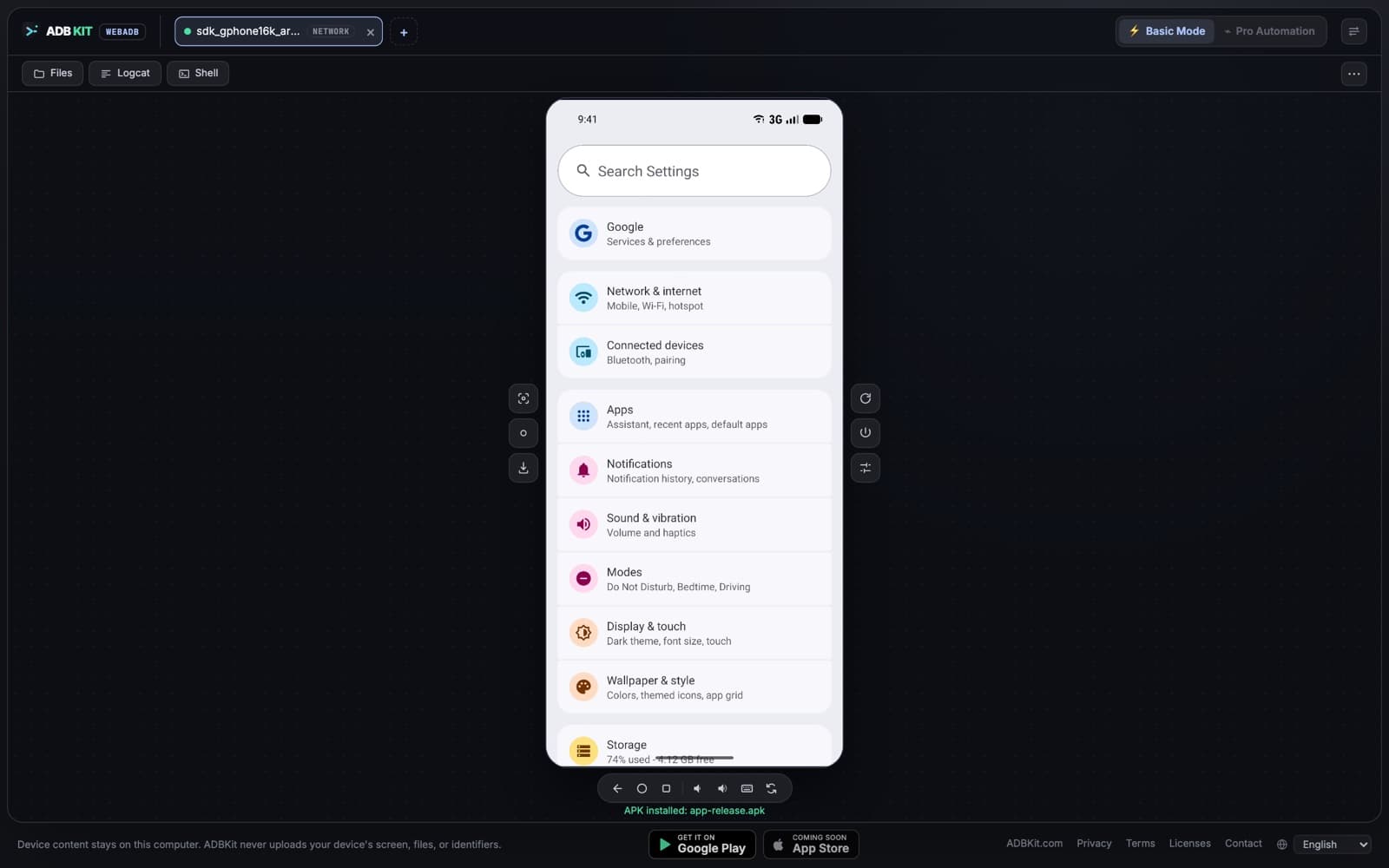
Connected device with live screen and controls 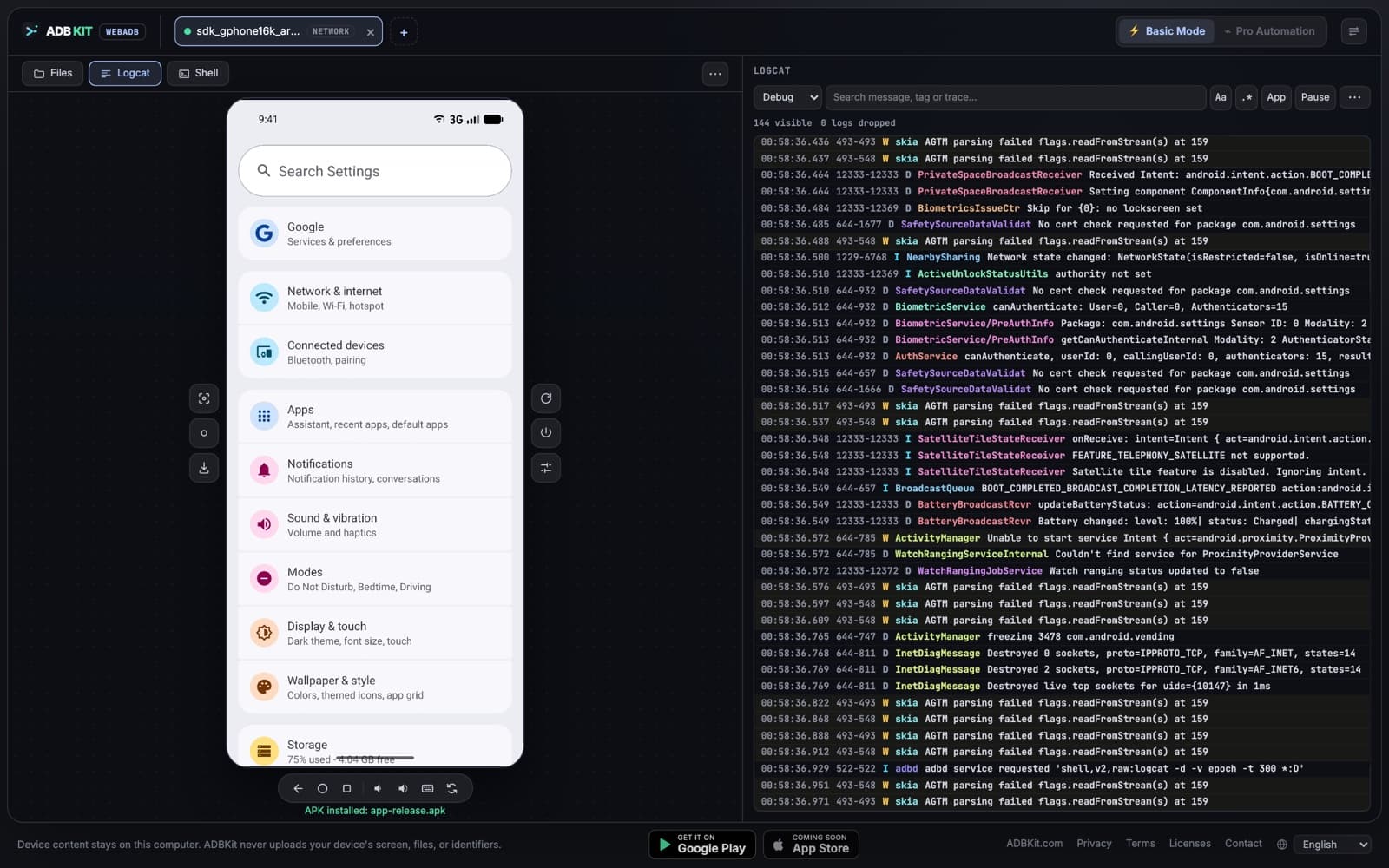
Live logcat with level filter and search 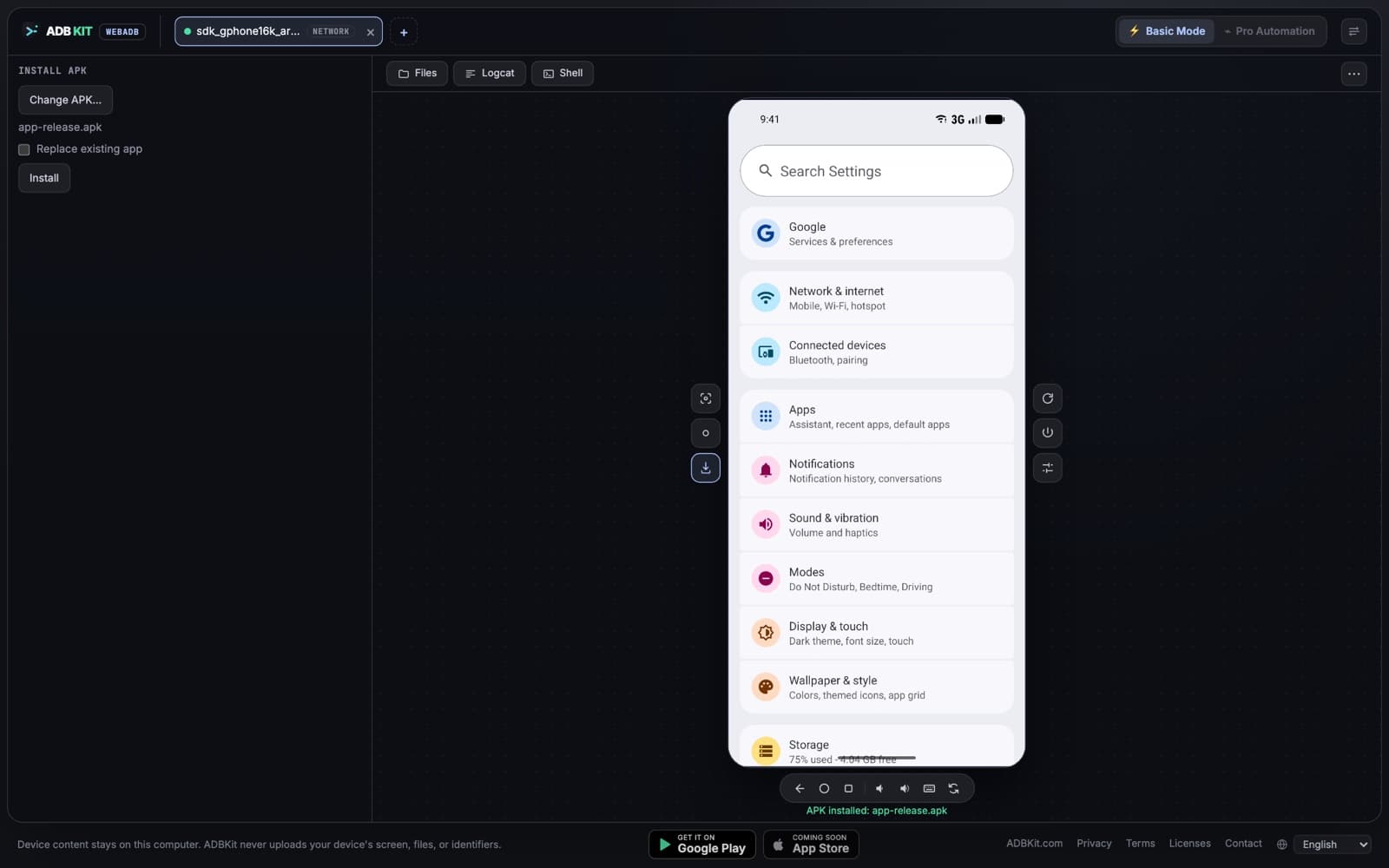
Installing an APK on the connected device 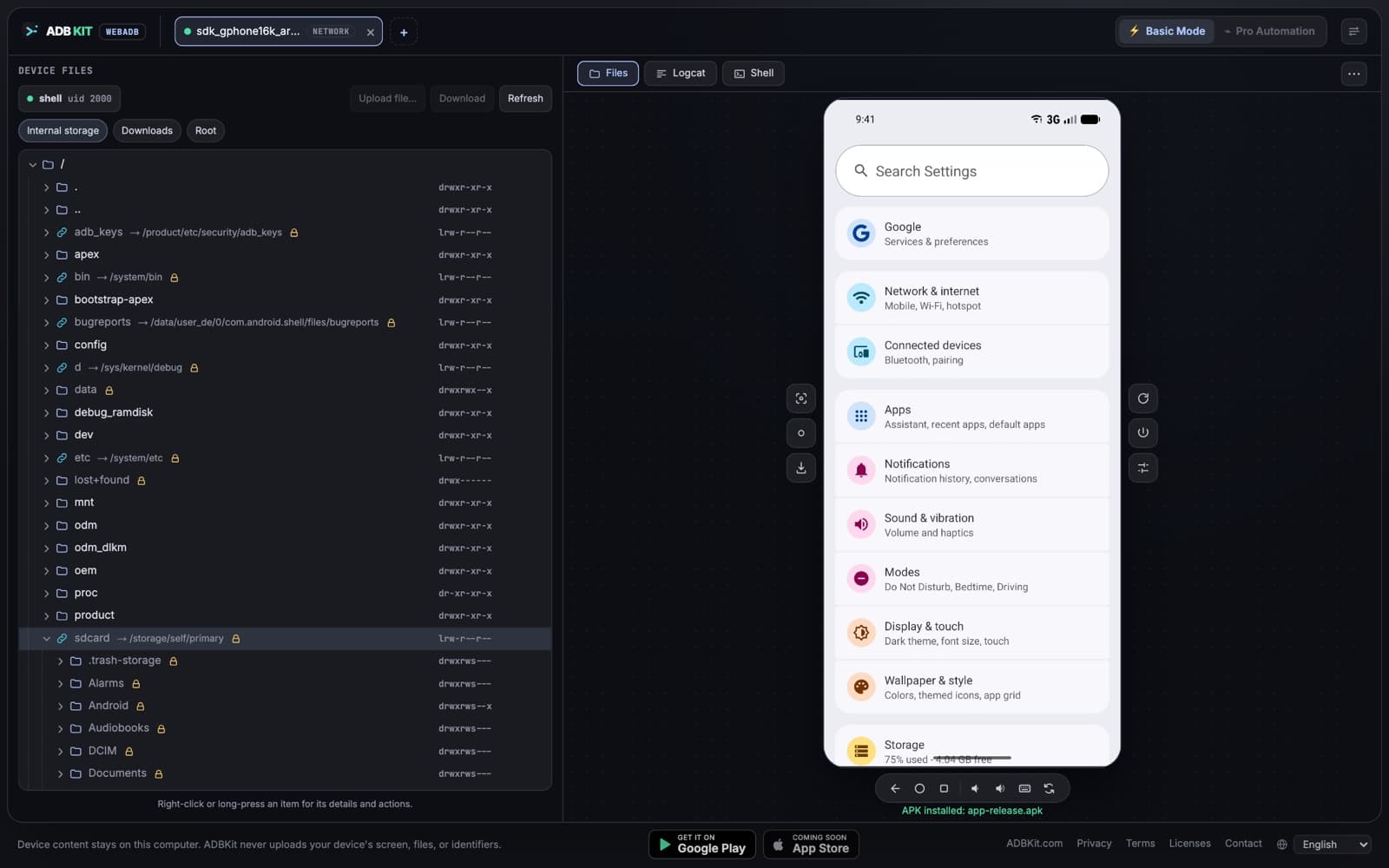
Browsing and transferring files on the device
Requirements
What you need.
- Browser
- Chrome, Edge or another Chromium-based browser with WebUSB, on desktop
- Computer
- A desktop or laptop computer you are allowed to use for debugging
- Device
- An Android phone or tablet with USB debugging enabled (Android 11 or newer for Wireless debugging)
- Connection
- A USB data cable, or the same Wi-Fi or network plus the small ADBKit agent
Not supported
- Firefox and Safari for USB (no WebUSB support)
- iPhone and iPad
Plug in a device and get started.
Free, no install, no account. Your device data stays on your computer.
Open workspace